
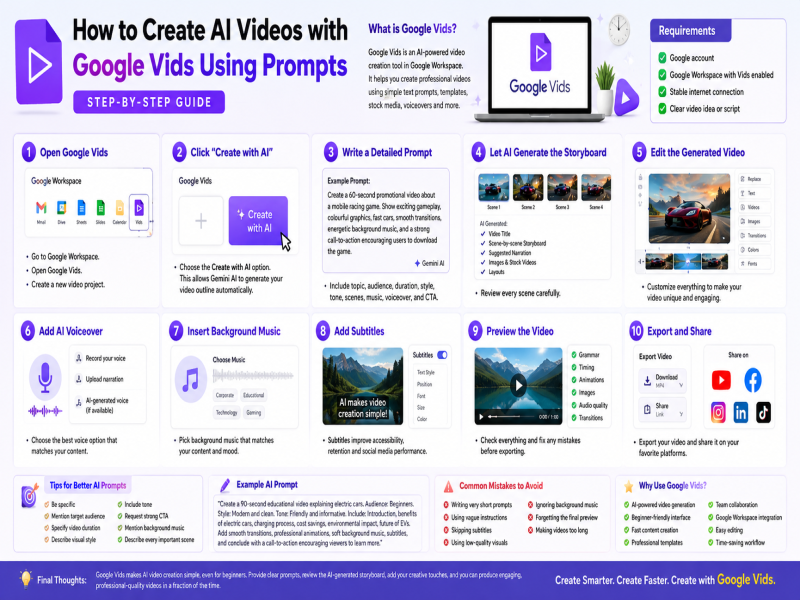
Artificial Intelligence is making video creation easier than ever. With Google Vids, you can generate professional-looking videos using simple text prompts without needing advanced editing skills.
Whether you're creating YouTube videos, social media content, product demos, educational presentations, or marketing videos, Google Vids can save you hours of work.
In this guide, you'll learn exactly how to create AI-generated videos with Google Vids step by step.
Google Vids is an AI-powered video creation tool developed by Google Workspace. It helps users generate presentations and videos using Gemini AI, built-in templates, stock media, animations, voiceovers, and collaboration features.
Instead of editing every scene manually, you simply describe what you want, and AI helps build your video.
Before you begin, make sure you have:
A Google account
Access to Google Workspace with Google Vids enabled
A stable internet connection
A clear video idea or script
Go to Google Workspace and open Google Vids.
Create a new video project.
Choose the Create with AI option.
This allows Gemini AI to generate your video outline automatically.
The better your prompt, the better your video.
Example Prompt:
Create a 60-second promotional video about a mobile racing game. Show exciting gameplay, colourful graphics, fast cars, smooth transitions, energetic background music, and a strong call-to-action encouraging users to download the game.
Include details such as:
Topic
Audience
Video length
Style
Tone
Scenes
Background music
Voiceover
Call-to-action
Google Vids will automatically create:
Video title
Scene-by-scene storyboard
Suggested narration
Images
Stock videos
Layouts
Review every scene carefully.
Now customise everything.
You can:
Replace images
Change videos
Edit text
Rearrange scenes
Add transitions
Modify colours
Change fonts
This helps make your video unique.
You can:
Record your own voice
Upload narration
Use AI-generated voice (if available)
Keep your narration clear and natural.
Choose music that matches your content.
Examples:
Corporate
Educational
Cinematic
Upbeat
Technology
Gaming
Avoid music that distracts viewers.
Subtitles improve:
Accessibility
Viewer retention
Social media performance
Always proofread subtitles before publishing.
Watch the complete video and check:
Grammar
Timing
Animations
Images
Audio quality
Scene transitions
Fix any mistakes before exporting.
Once satisfied:
Export your video
Download it
Share on YouTube
Upload to Facebook
Publish on Instagram
Post on LinkedIn
Share on TikTok
Here are a few prompt-writing tips:
Be specific.
Mention the target audience.
Specify the video duration.
Describe the visual style.
Include the desired tone.
Request a strong call-to-action.
Mention background music preferences.
Describe every important scene.
Writing very short prompts
Using vague instructions
Skipping subtitles
Using low-quality visuals
Ignoring background music
Forgetting the final preview
Making videos too long
Google Vids offers several advantages:
AI-powered video generation
Beginner-friendly interface
Fast content creation
Professional templates
Team collaboration
Google Workspace integration
Easy editing
Time-saving workflow
Google Vids makes AI video creation simple, even for beginners. By writing clear prompts and refining the AI-generated storyboard, you can produce engaging, professional-quality videos in a fraction of the time required by traditional editing software.
The key to great results is providing detailed prompts, reviewing the generated content carefully, and adding your own creative touches before publishing.
Begin your journey in just a few easy steps.